Add a run opens one dialog with three tabs: Upload a file, Log by hand and Other sport. The button is on All activities and on Today, and on a computer also at the top of the Calendar. To open it from All activities:
Open the Calendar.
Press All activities.
Press Add a run.
The dialog opens on Upload a file. For training that isn't a run, such as a ride or yoga, press Other sport.
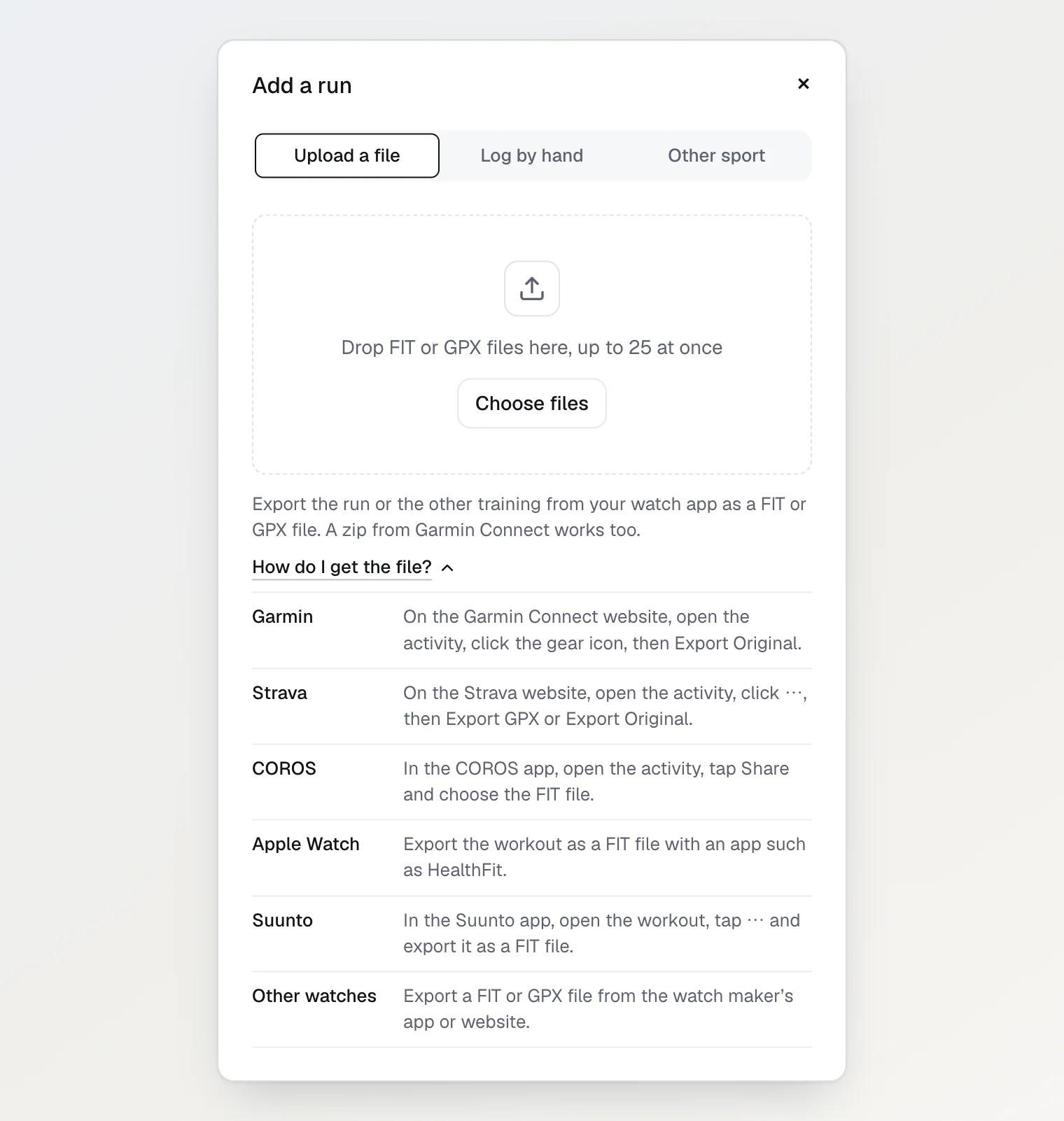
Upload a FIT or GPX file
Hyppo Run reads FIT and GPX files. A zip with one FIT or GPX file inside works too, such as the one Garmin Connect exports, and so does a gzipped file. Hyppo Run reads the format from the file's content, not from its name.
One file can be up to 25 MB.
One upload takes up to 25 files. With more, Hyppo Run takes the first 25, and a line under the list says how many files wait for the next round.
If you don't know how to export the file, press How do I get the file? under the drop area. It opens the steps for Garmin, Strava, COROS, Apple Watch and Suunto, and for other watches.
If Use my health data for my plan is off, Hyppo Run saves the run without heart rate, and the same file uploaded later doesn't add it. If you want the heart rate, turn the setting on first.
Export the run from your watch app as a FIT or GPX file.
Press Choose files and pick the files.
On a computer, dropping the files on the drop area works too. Each file gets a row that reads Waiting, Uploading… and Reading the file…, and then Added.
With one file, the dialog closes and the run's page opens.
With several files, the dialog stays open. Each row that has a run gets an Open link to it, and at the end a line such as "3 of 3 added" shows next to Done.
Already added means Hyppo Run already has this run: from the same file, or from another recording that covers the same time. Nothing changes then. A file that can't be added shows the reason in its row, for example the 25 MB limit.
If you logged the run by hand first, the file goes into that run when both are on the same date and the distances differ by 10% or less. The file's distance, time and route replace the typed ones. The run keeps its feel, notes, This was a race tick and the session it counts for.
A file of another sport, such as a ride, comes in as other training. Other training counts for no session of the plan.
Uploads with health data turned off
The setting Use my health data for my plan also covers the heart rate of your runs. If you turned it off in Settings › Training › Your data, uploads still work, without heart rate:
Hyppo Run removes the heart rate from the file before it saves the run. The run keeps its time, distance, route and splits.
Hyppo Run doesn't keep the file with the run. It deletes the uploaded file after 3 days.
A run added while the setting is off stays without heart rate. The same file uploaded again shows Already added, also after you turn the setting back on, and so does another file of the same run. To get the heart rate, turn the setting on, delete the run and upload the file again. The run's feel and notes go with the deleted run.
With the setting on, Hyppo Run keeps the file with the run.
Log a run by hand
Log by hand is for a run without a file, such as one your watch didn't record.
Press Log by hand.
Set the Date: today or an earlier day.
Type the distance in Distance, km, or Distance, mi with miles. If the run has no distance, such as one on a treadmill, leave the field empty: Hyppo then judges the run by its time.
Type the time in Hours, Minutes and Seconds.
If it was a race, tick This was a race.
If you like, pick an answer under How did it feel?: Felt easy, About right or Felt hard.
Press Add run.
If the pace comes out faster than 2:50 or slower than 15:00 per km (4:34 or 24:08 per mile), the dialog shows the pace and asks you to check the time. Correct the time, or press Save anyway. The run's page opens once the run is saved.
Which session the run counts for
With a plan, Hyppo matches each run, uploaded or logged, to a session by its date:
A run on a day with a planned run counts for that session, and the session shows ✓ Done. On a day with two planned runs, it counts for the one closest to it in distance, or in time for a run without a distance.
A run on a day without a planned run counts for the next day's session, or else the previous day's, if it covers at least 60% of that session. The race and a fitness test count only on their own date.
A run on a day whose session already has a run counts for no session. Neither does a run whose session you skipped.
Without a plan, a run counts for no session.
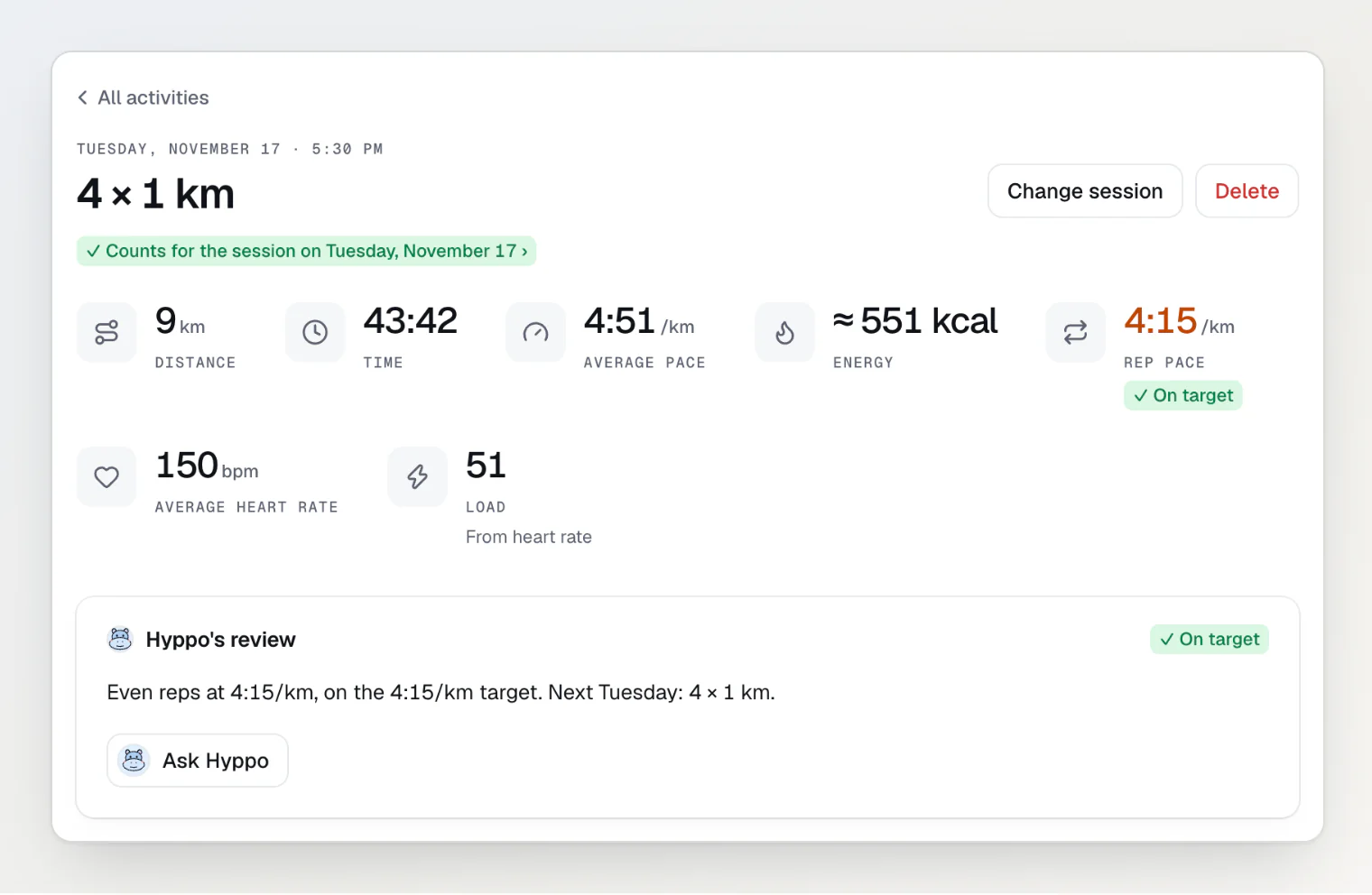
The run's page says where the run went: ✓ Counts for the session on and the session's date, or Not part of your plan.
Change session shows when the run counts for a session, or when a session up to 3 days before or after the run has no run yet and isn't skipped. It lists those sessions and Not part of the plan. Other training and runs of an earlier plan don't have it.
To move a run to another session:
Open the run.
On a phone, press ⋯ first.
Press Change session.
Pick a session, or Not part of the plan.
Press Save.
Where the run shows up
On its own page, with Hyppo's review.
In All activities. Its type filter Unplanned lists the runs that count for no session.
On the Calendar, on its date.
On Today, for a run of today's date.
Continue reading
Set up Hyppo Run after you sign up — pick a goal or none, and see what Today shows on day one.
Check in and see what Hyppo changes — how the morning check-in and your runs change the next sessions, and where Hyppo explains why.
Turn health data and the AI on or off — what the setting Use my health data for my plan covers, including the heart rate of your runs.